


Welcome
 1 min read
Welcome
Let's get your site up and running!
Firstly, thank you for choosing our template. Before launching, take some time to customize the site and make it your own.
Step by step guide
Below is a simple guide on how to initially set up the theme.
Step 1. The main thing before starting
Duplicate the project to your Framer account (if you haven't already)
All components are divided according to logic: demo, navigation, control and etc.
Step 2. Replace the logo
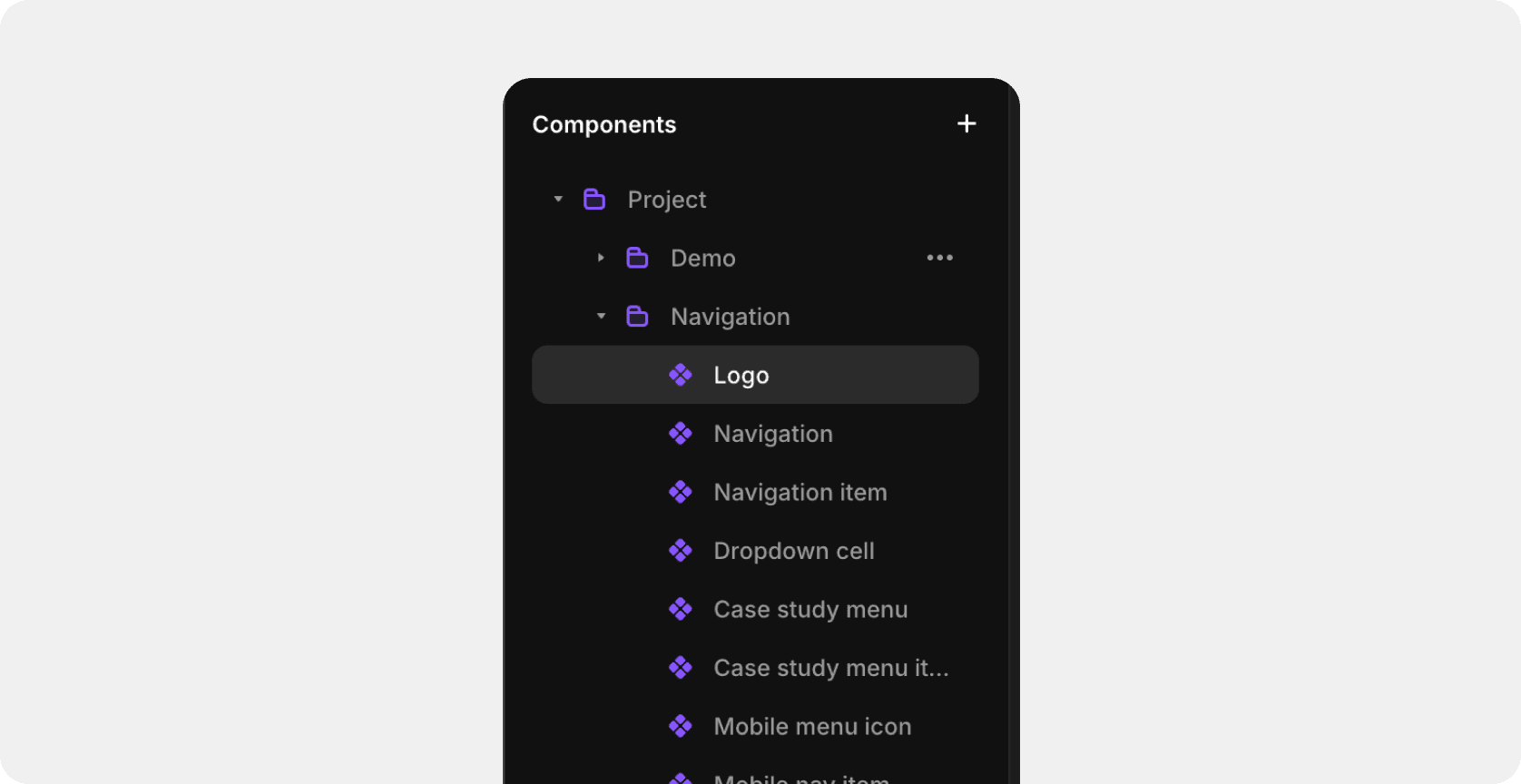
A logo is a component
Find it in Assets → Components → Logo
Double click on a component or Right click → Edit Component
Upload your logo in svg, png or jpeg format
Go back and it will be updated everywhere on the site
Step 3. Delete extra pages
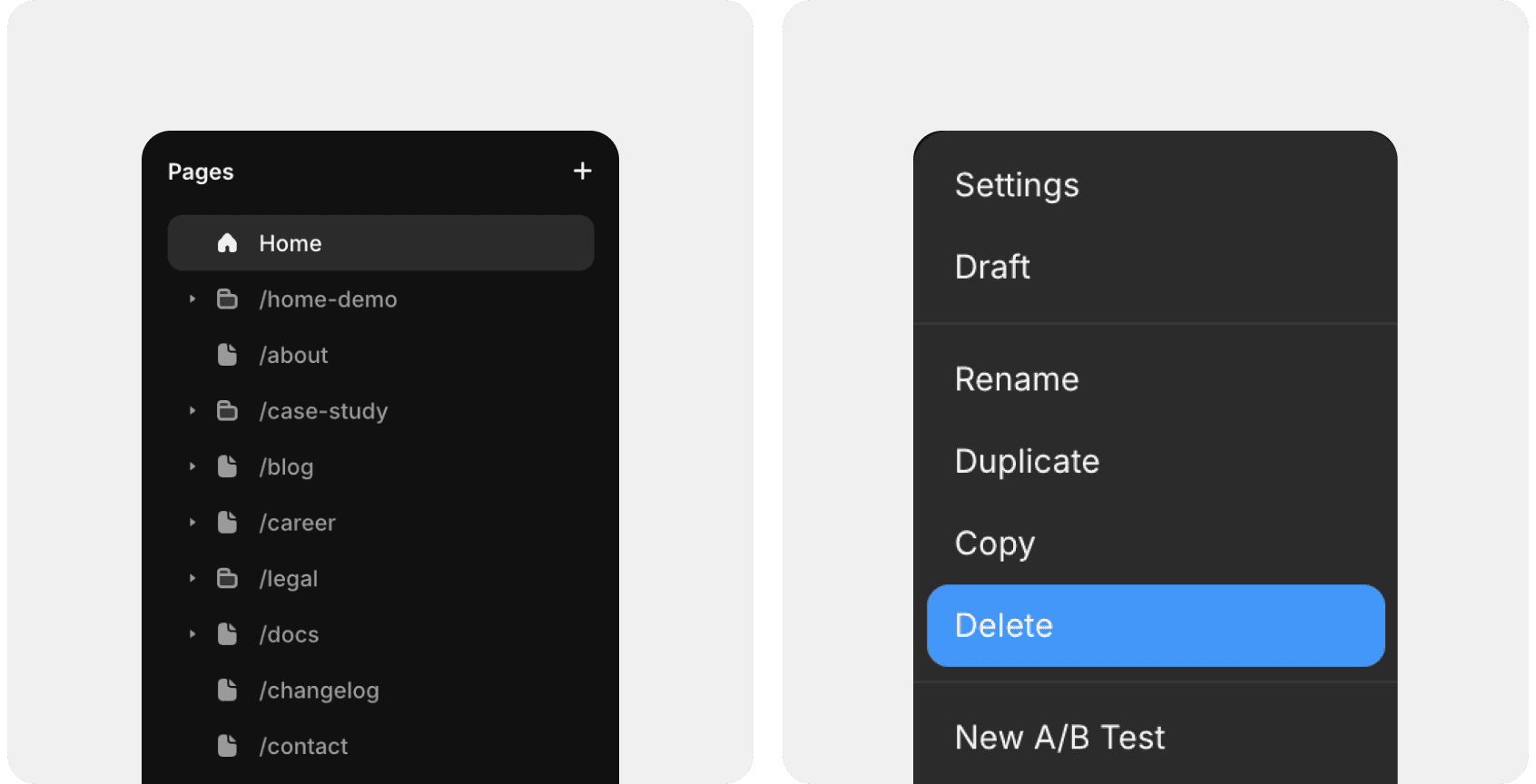
Open the Pages left-side menu
Delete pages that you will definitely not use (for example, Contact, Legal, etc.)
Right-click on the page → Delete
Step 4. Update Colors
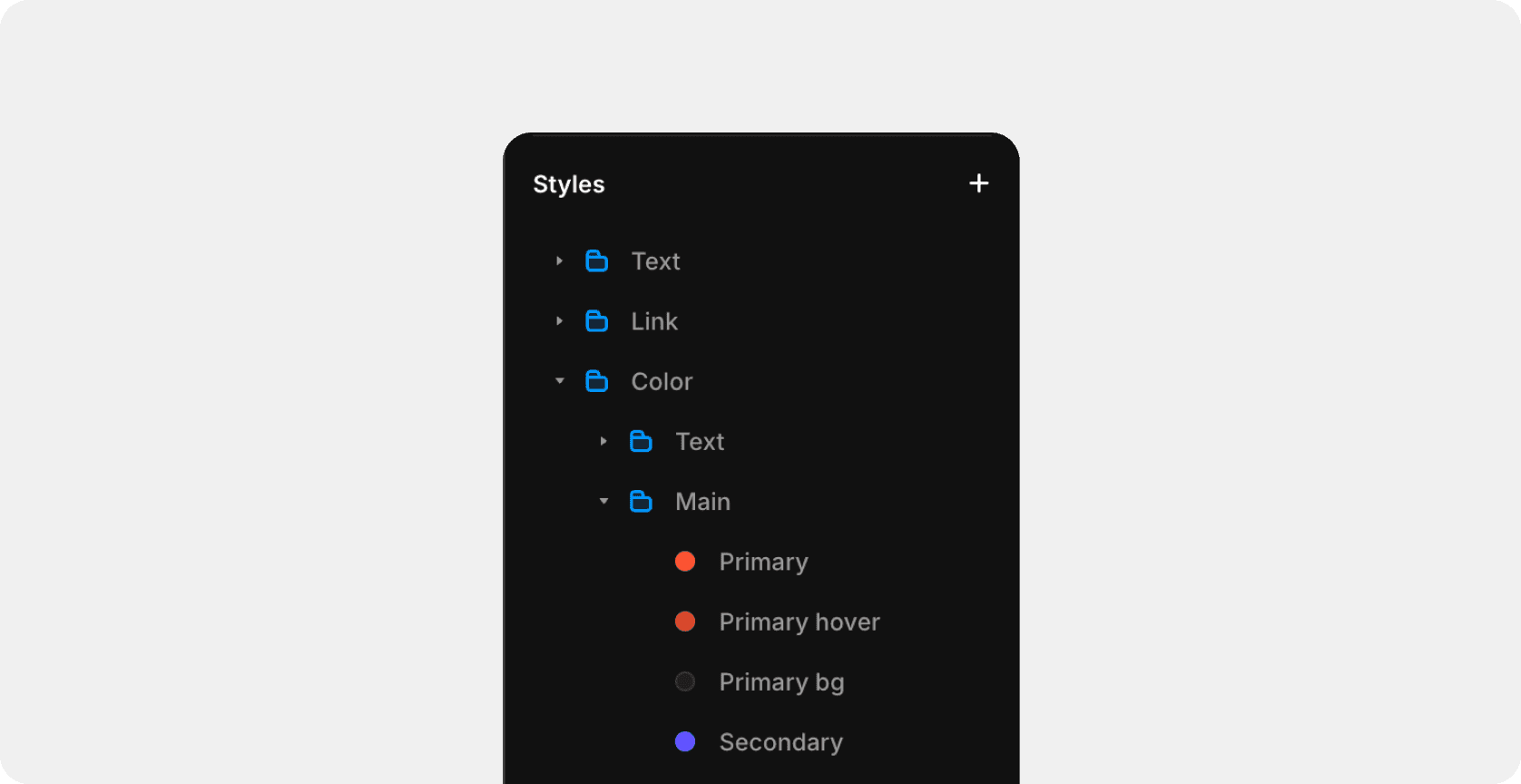
Firstly update Primary and Secondary colors
Then change the other colors as desired: background, surface and etc.
Step 5. Set up the main page
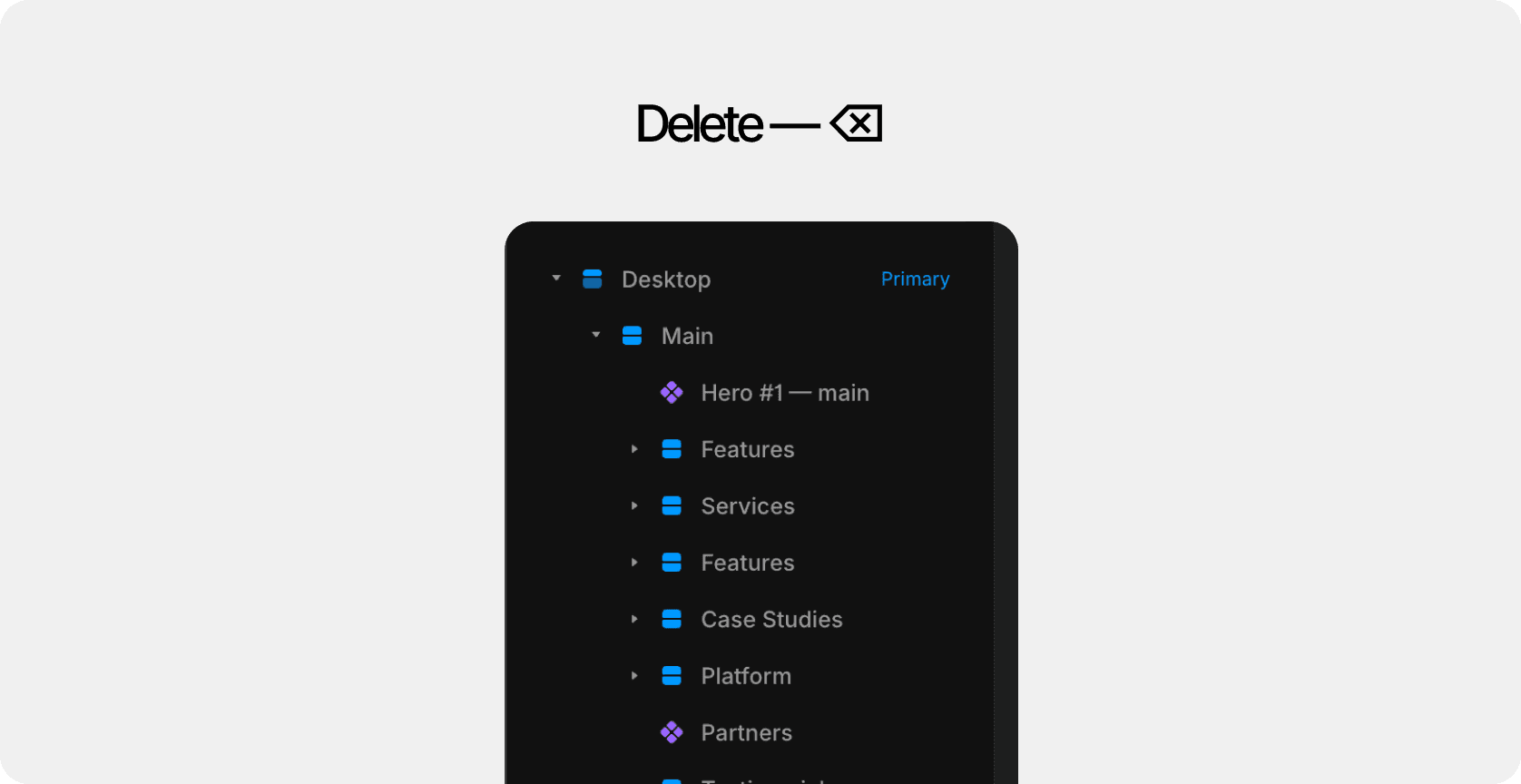
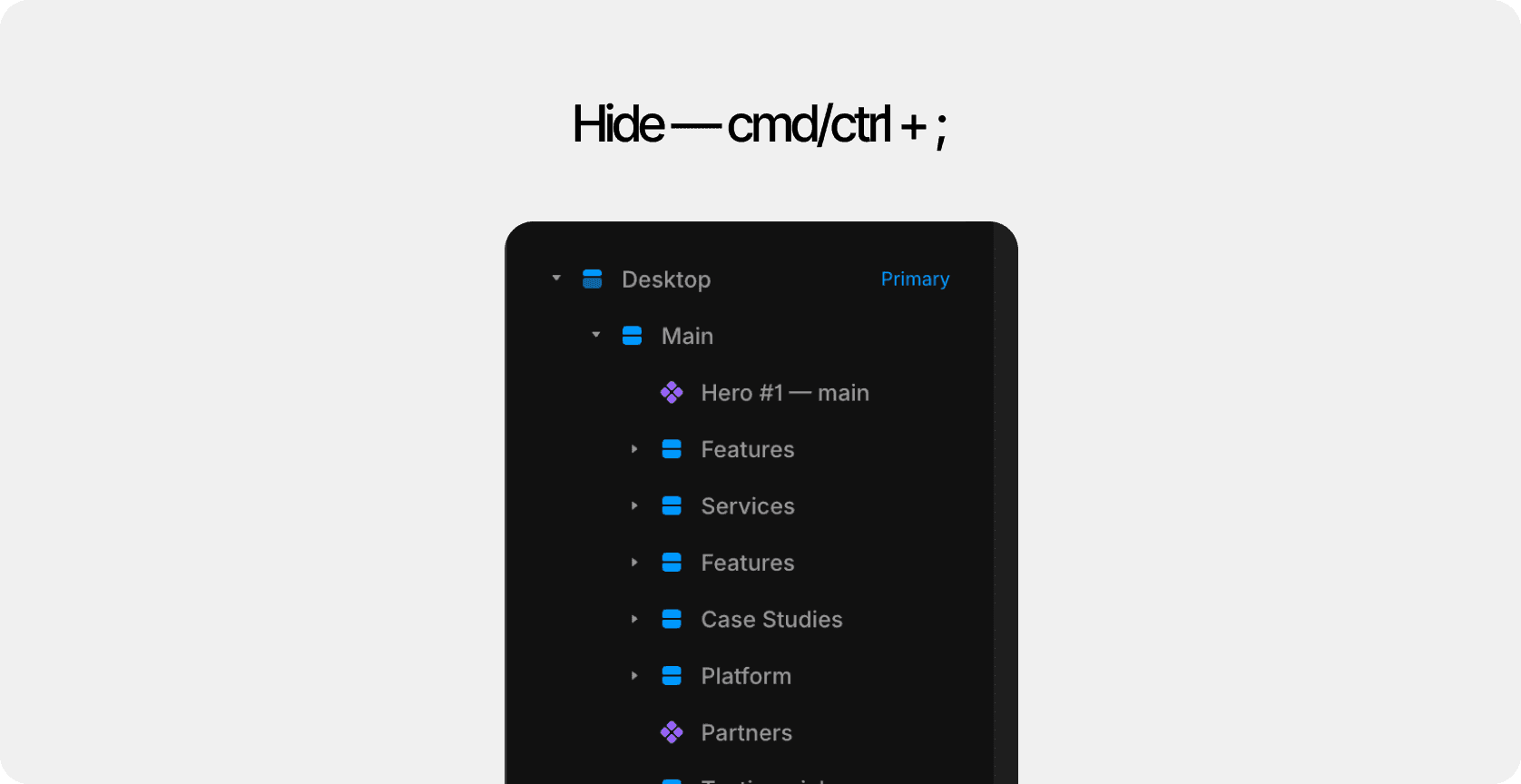
For the beginning — delete or hide all the extra sections on the main page that you won't use
Step 6. Set up Navigation and Footer
Set up the information in the footer and navigation (including the navigation menu)
Step 7. Update the feedback form
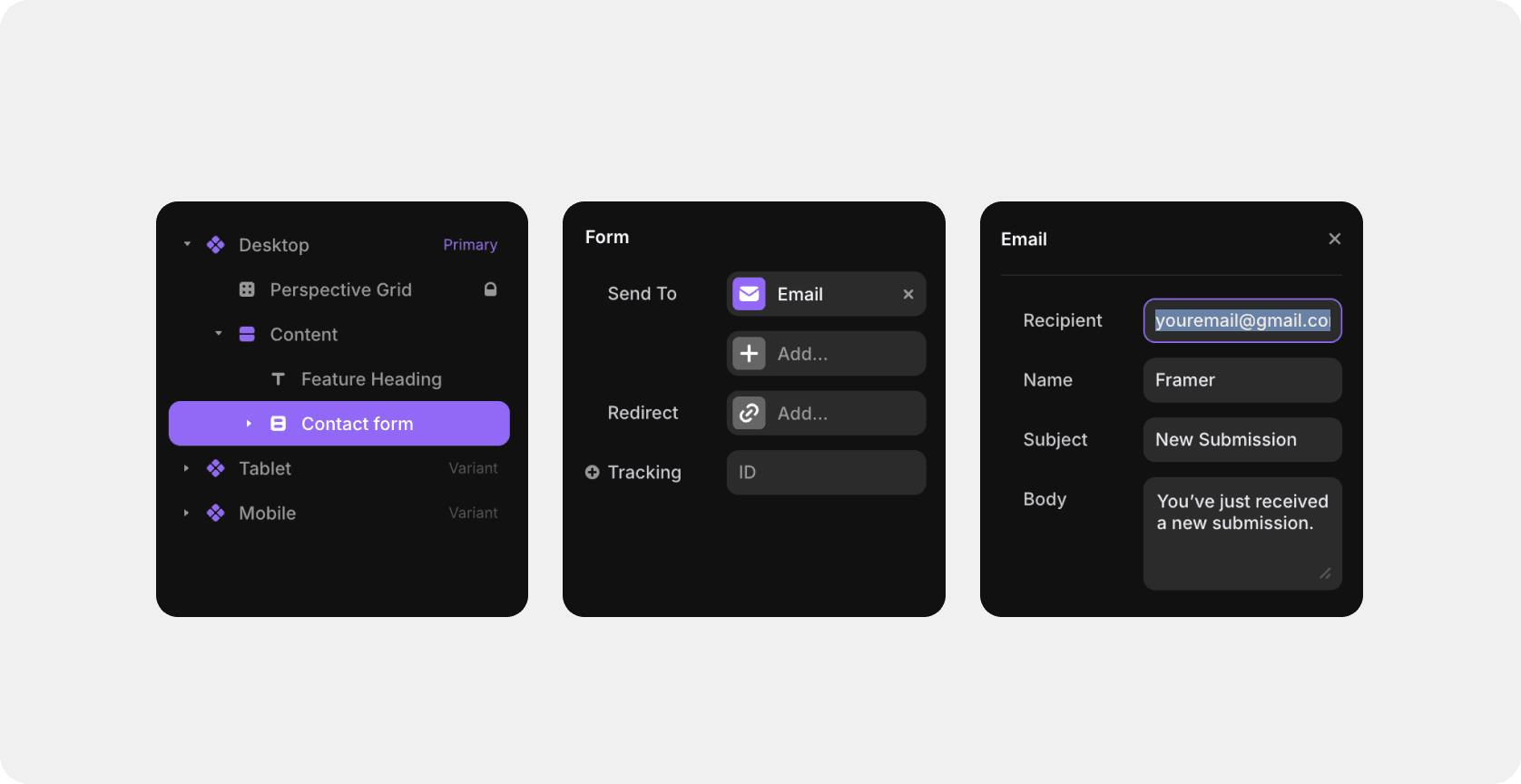
To make forms functional, select the Form in the Layers panel and add your Email to the recipients list in the right panel.
Step 8. Create or edit new Project, article in blog or legal info with CMS
First, make sure that the template design and all the functionality of the article page for a blog or legal, new project are suitable for you.
Go to the CMS section (in the upper panel on the left)
Select the desired collection: Project, Blog or Legal
Edit an existing entry or create a new one using the visual editor.
If you are not satisfied with the current design of the entry page, you must edit it manually: for example, by deleting an unnecessary block or adding your own, but keep in mind that after adding new functionality, you must re-link it to the CMS.
Last updated on
November 27, 2025